aPriori supports importing specific semantic Product Manufacturing Information (PMI) values defined in supported CAD systems. PMI is often added to CAD models to specify non-geometric attributes necessary for the correct manufacturing of the part. These can include Geometric Dimensioning and Tolerancing (GD&T), surface texture specifications.
Two flavors of PMI exist:
-
Non-semantic or “graphical” PMI: TThis is an older implementation and is simply the addition of displayable textual annotations represented by lines and characters to the CAD model. These annotations are human-readable but are usually not fully associated with the underlying part geometry in machine-readable form.
-
Semantic PMI: These annotations are implemented as CAD model metadata in a well-defined and machine-readable and human-readable fashion.
Note: aPriori only reads semantic PMI. There are some minor, CAD-system-dependent exceptions, but in general, you can only import semantic PMI annotations into aPriori.
It can be difficult to determine if an annotation visible in a CAD model is sematic or non-semantic, so most CAD systems provide ways of flagging non-semantic PMI annotations, such as appending a red squiggly line beneath the annotation.
A complete discussion of PMI is beyond the scope of this aPriori document. You must consult the documentation and support resources for your CAD system regarding how to properly construct and identify semantic versus non-semantic PMI in CAD models. Note that some CAD systems may require you to acquire and install an additional module for creating PMI annotations. For example, CATIA requires that you have access to their Functional Tolerancing and Annotation module.
For more information, refer to:
-
Reputable third-party sites such as the National Institute of Standards and Technology (NIST, http://www.nist.gov).
-
The PMI sections of the documentation, training, and Support resources for your CAD system(s)
aPriori Customer Support for PMI
aPriori supports importing sematic PMI values from these CAD systems:
-
CATIA
-
Creo
-
NX™
-
SOLIDWORKS™
Note: There are a couple of non-semantic PMI annotations that aPriori can import, such as Diameter and Roughness annotations. However, in general if aPriori encounters non-semantic PMI when reading a CAD model, it logs the presence for diagnostic purposes but does not store the information or attempt to use it for costing.
The following types of PMI are generally supported, with some restrictions for different CAD systems:
-
Diameter tolerances
-
Most geometric tolerances
-
Surface Roughness Ra & Rz
-
“Virtual” Threads/Taps (see About virtual threads and taps)
aPriori takes the imported PMI data and applies it to the appropriate GCDs for costing. (See Geometric Cost Drivers.) You control PMI import behavior through the Tolerance Policy Editor.
When Multiple Tolerances are Applied to a Single Composite Tolerance Frame
When multiple tolerances are applied to a single composite tolerance frame, aPriori imports the lowest (tightest) tolerance value listed. For example, with the position tolerance shown below, aPriori now will import a tolerance of 0.3:
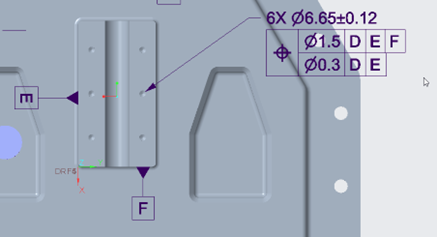
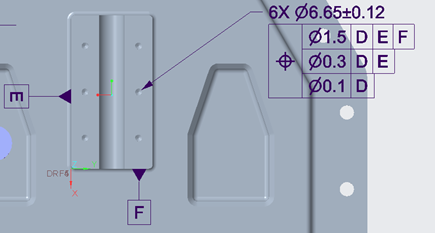
Note: there is a known limitation for Creo and Catia CAD models that allows aPriori to read only the first two tolerances specified in a composite tolerance frame. Hence, if the example above was extended to have three positional tolerances, then the third tolerance value of 0.1 would not be imported, despite being the lowest (tightest) value:
Support for Tolerance Annotations that Reference Only Another Tolerance
aPriori correctly imports values from tolerance annotations that reference only other tolerances.
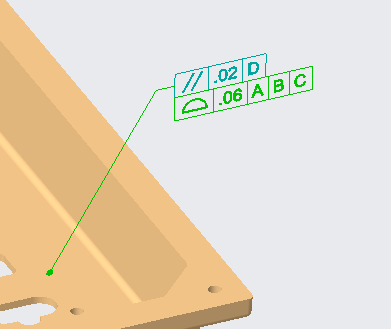
For example, the Profile of Surface tolerance shown below references only the parallelism tolerance to which it is attached. aPriori assigns the designated surface both a parallelism tolerance value and a profile of surface tolerance value:
About virtual threads and taps
Although threaded hole information does not fall under the category of tolerance or roughness annotations, it is imported from the CAD model to aPriori using the same mechanism.
Note: aPriori does not import PMI from Assembly models, just part models. This includes thread information for holes created as assembly features rather than part-level features. However, if you are working in the Creo Direct Integration version of aPriori, information about threaded holes made as assembly-level features is provided to aPriori. In all other cases, users have to indicate that these holes are threaded inside the aPriori application.
Each supported CAD system supports multiple ways to specify that a hole or shaft is threaded, without modeling the threads, hence the term “virtual”. The concepts are the same across the different CAD systems, although the ways they are implemented differ.
CAD systems offer two ways to specify virtual threads:
-
As a property or set of properties of a hole feature, typically implemented as a checkbox that says “threaded”, plus fields for entering other data such as thread length or depth pitch.
-
As a separate distinct feature. These features are named differently in different systems
-
CREO: “cosmetic thread”
-
Catia: “thread/tap feature”
-
NX™: “symbolic thread”
-
SOLIDWORKS™: “cosmetic thread”, “tapped hole”
-
aPriori currently supports all these methods SOLIDWORKS™ thread and tapped hole information.
In addition, aPriori Direct Integration mode (see Direct integration mode) supports both property and feature approaches for CREO.
Regardless of how you import virtual thread information, aPriori costs them based on the fact that the hole is threaded and uses the diameter and the thread length to compute cycle time. Any other data such as thread pitch is ignored.
Only a subset of thread metadata which may exist in a CAD model is imported into aPriori and used to calculate cost.
Importing and reviewing PMI from CAD
Supported semantic PMI annotations are imported to aPriori when you open or refresh a supported CAD file If you set the Use CAD model values… checkbox in the Tolerance Policy Editor. You must select this checkbox to import semantic PMI information from a CAD model; otherwise, it is ignored.

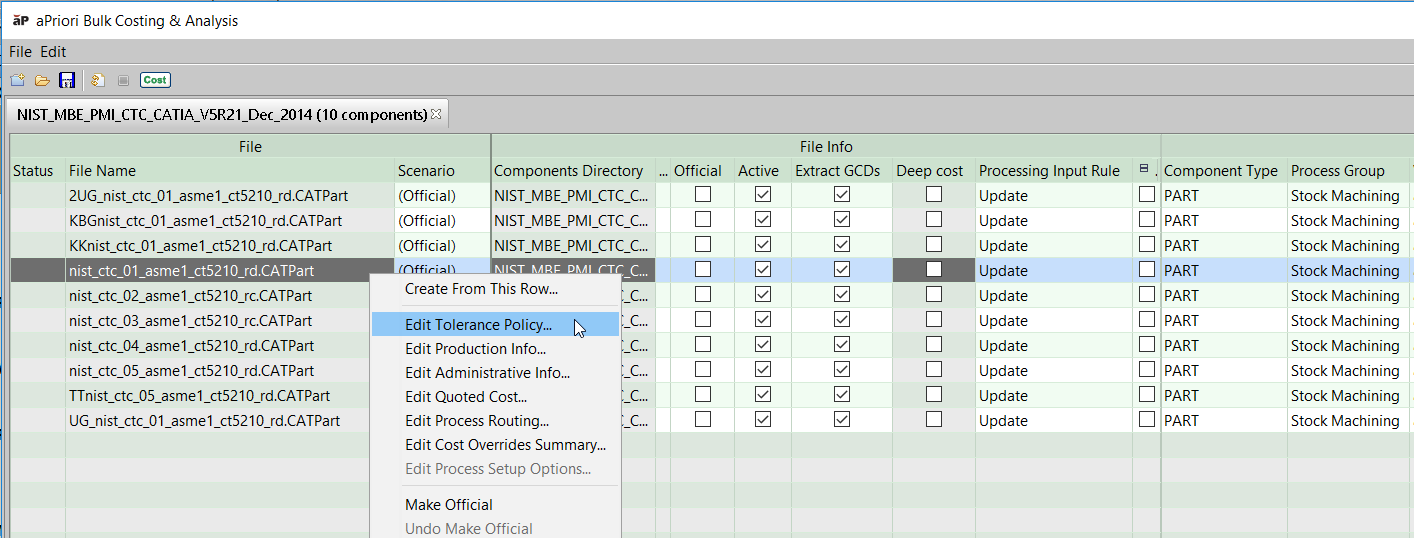
The following sections describe how to import PMI with the interactive aPriori client. For Interactive Bulk Costing, you must set the Tolerance Policy for the Bulk Costing run for all or selected scenarios. You can specify the Tolerance Policy from the command line or from the input spreadsheet.
Importing roughness (Ra and Rz) values
CAD systems provide a variety of ways to specify Roughness. aPriori has adopted a specific method for processing and interpreting the incoming roughness data found in a CAD file, described as follows. Roughness import is not supported for SOLIDWORKS™.
Up to nine Roughness Related fields may be populated across the varying CAD systems supported by aPriori: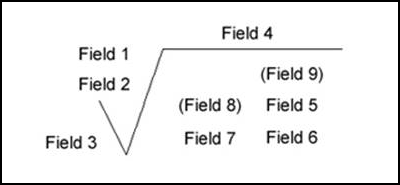
Where the following fields represent:
-
Field 1: Roughness value Ra
-
Field 2: Unused
-
Field 3: Minimum material removal
-
Field 4: Production method
-
Field 5: Roughness cutoff
-
Field 6: Roughness value other than Ra, Rz
-
Field 7: Direction of lay
-
Field 8: Rarely used.
-
Field 9: Rarely used.
aPriori looks at any values defined in these nine fields according to the following rules:
-
Find all fields that look like "Ra number" (case insensitive and ignoring whitespace around "Ra" and around the number).
-
Find all fields that look like "Rz number" (case insensitive and ignoring whitespace around "Rz" and around the number).
-
If Ra and/or Rz is then aPriori uses the smallest value of each for the GCD properties.
-
If neither Ra nor Rz is found, then aPriori tries to parse the contents of Field 1 and Field 6 as numbers.
-
Field 1 contains "Roughness value Ra", Field 6 contains "Roughness value other than Ra".
aPriori uses any number in Field 1 for the RoughnessRa property and any number in Field 6 for the RoughnessRz property. -
For example, if Field 1 (the nominal Roughness Ra field) is populated with "32" and Field 5 (the Roughness Cutoff field) is populated with "Ra 64", aPriori use Field 5 since it contains the Ra string and Field 1 does not, even though the VALUE of Field 5 is larger than the value of Field 1.
-
Import PMI
-
Open the Tolerance Policy Editor.as described in Open the Tolerance Policy Editor.
-
In the Tolerance Policy Editor, select the Use CAD model values… radio button.

-
Click OK, then Cost the model.
-
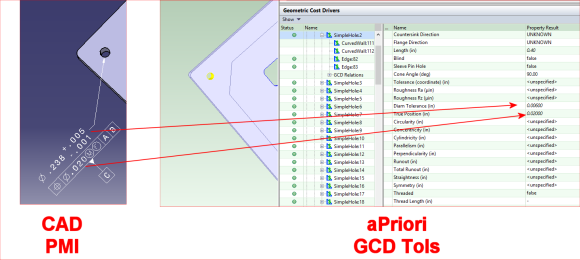
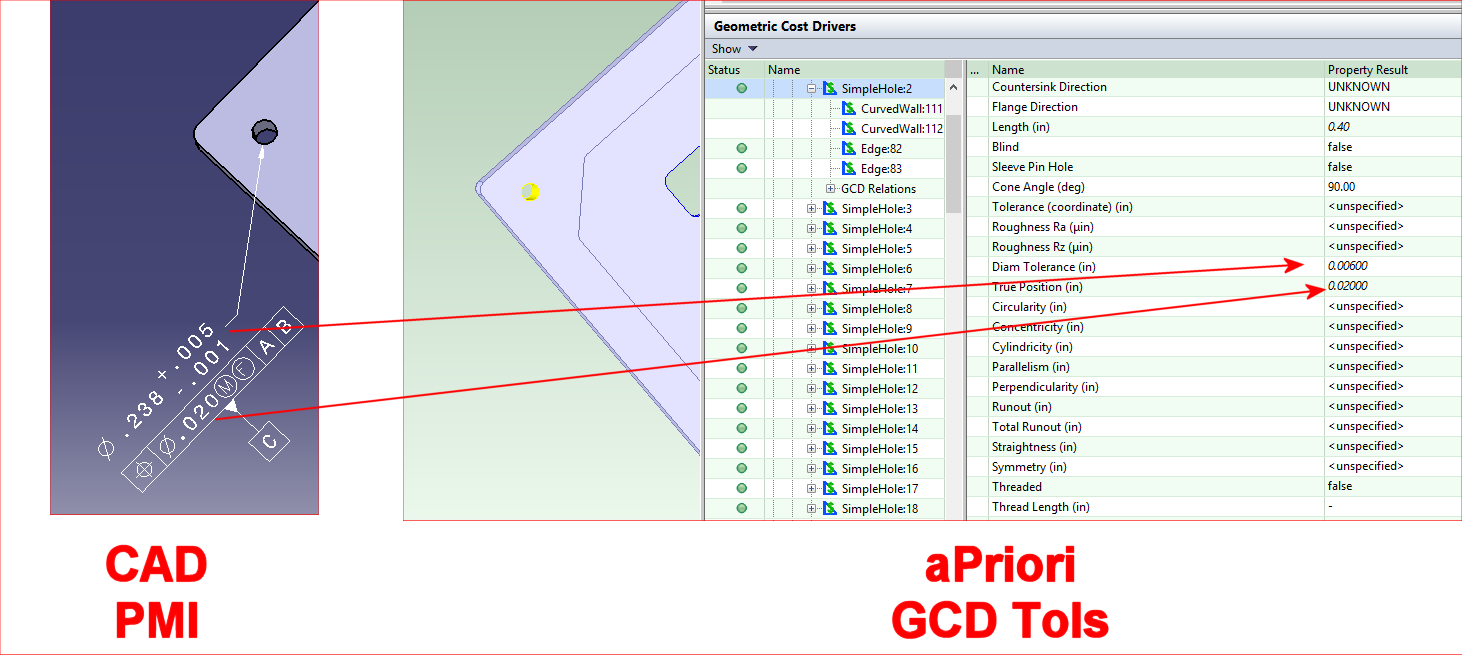
To confirm that the expected PMI values have been correctly imported, go to the Geometric Cost Drivers pane and navigate to a GCD that should have the PMI value from the CAD model.
-
In this example, note that the “+.005/-.001” CAD PMI tolerance appears in aPriori as a total “.006” tolerance.
-

Troubleshooting PMI
aPriori writes entries to the log file whenever it encounters a PMI attribute that it cannot map to a GCD. The following messages are “WARN” level and, by default, are written to the log file:
<PMI NAME> ignored because it is specified on an inactive surface,
<PMI NAME> was not associated with any GCDs, and
<PMI NAME> was not used because it is not semantic and has no magnitude. It would have been associated with GCD(s) <LIST OF GCDs>
To reduce the number of entries written to the log files, several other PMI messages are only written if the logging is set to DEBUG level.
Set DEBUG-level logging for PMI:
-
Open <apriori_install>/log4j.properties in an editor.
-
Add the following line: log4j.logger.com.fbc.util.cad.pmi.PmiLog=debug
-
Save the file and restart aPriori.
View PMI log messages:
-
Click Help > Explore Logs Directory
-
Open apriori.log in a text editor. Search for entries with PmiLog.
-
These messages contain information that enable you to identify the PMI attribute that failed and the reason, as shown in the following example.
DEBUG PmiLog:285 - [Dim tolerance NIST PMI FTC 06 ASME1|Annotation Set.1|Linear Size.30 LINEAR 7.9375[-0.508:0.508]] were ignored because aPriori currently does not support non-radial/diametrical dimensional tolerances.
-
Since aPriori imports only semantic PMI, and since it is not always easy to identify semantic vs. non-semantic PMI in a CAD system, aPriori logs entries like the following when it encounters non-semantic PMI attributes:
WARN PmiLog:285 - Gtol turning|Annotation Set.1|Geometrical Tolerance.13 [SYMMETRY -1] Note:.0005|| is not semantic
-